
How to install and configure the Smart IPTV application (SIPTV) on your Smart TV?
What is the Smart IPTV Application (SIPTV)?
The SMART IPTV application, is an IPTV player with EPG (Electronic Program Guide) that allows you to easily access the IPTV channels you want.
However, as mentioned on the official website, SMART IPTV PRO PREMIUM does not include channels, so you will have to add yours via an IPTV subscription, you can subscribe to a quality IPTV subscription on our Meta-IPTV site from 16€/month.
Some people believe that the app offers channels for free immediately, but this is not the case.
If you want to enjoy this app, you need to add your own channels.
However, before you try to add channels in the app, you need to learn how to install SMART IPTV on your TV. On some devices, installing this app is as simple as installing an app on your phone.
We remind you that our IPTV subscriptions are perfectly compatible on the Smart IPTV application (SIPTV).
SMART IPTV (SIPTV) is compatible on several devices including:
- SAMSUNG TV
- IPTV BOX
- APPLE TV
- SMART PRO
- IPTV SMARTERS PRO
- Freebox Mini 4K
- LG TV
- Android TV
- Bbox Miami
- Nvidia Shield
- Xiaomi Mi box 3
- Nexus Player
- PRO IPTV
- Box Android
- and even more …
Note that the installation and configuration differs for each device, in this article we will show you how to install and configure SMART IPTV on a SAMSUNG SMART TV or LG TV. (This is a bit the approach for other devices).
How to install and configure SMART IPTV on a SAMSUNG Smart TV or LG TV?
I- Installation
- Turn on your TV. Remember that your TV must be connected to the internet to be able to download applications.
- Click Smart Hub. On your remote, press the multi-colored button in the middle.
This button is called Smart Hub. With some remotes, it is a button with the drawing of a house. You arrive on My Programs.
1- Select Samsung Apps.2- Head to My Apps.
3- Select Samsung Apps by clicking on the button in the middle of the arrows.
4- Choose a category of applications. In the left sidebar menu, you will see a list of application categories. Select a category, such as most popular, games, etc.
5- Note that the Search function will allow you to register.
6- Find the SMART IPTV (SIPTV) application.
7- Find SMART IPTV. In the category you want, select the application. The app page opens.
8- Press Install. Once on the application page, click Download, then Installation, and finally Run. That’s it, you have installed the app on your Smart TV.
- Note that if the app is paid, the price will be displayed on the app page.
- Once the process is complete, you will be taken directly to the app page and you can start using it.
II- Configuration
- Note that the application is paid (about 5 or 6 €). You can have a 7-day trial and then you have to pay to keep using it.
In the following, we will explain how to put the m3u link of your iptv subscription in the application thanks to your MAC address from any browser.
1- Retrieve your MAC address:
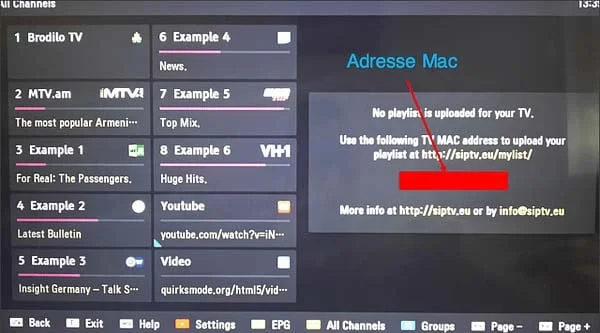
2- Go to this page: siptv.eu/mylist
3- Enter your MAC address in the “MAC” field4- Paste the m3u link you receive from your IPTV subscription provider on the “URL”
field.
5– Click on the “Upload” button6- Wait for the link to load, the following message will appear:”
1 URL added! Restart the App.”
7- Go back to your Smart TV and restart the Smart IPTV application (press Reload(0) or the Restart button), if the list of channels does not load automatically, restart the TV and restart the application, in case of appearance of a message “server connection Timeout” do not press OK and wait for the full load “this can sometimes last up to 60 seconds depending on the speed of your internet connection.
NB: if you have an LG brand smart TV, change the “STREAM PLAYER TYPE” setting and set it to NC AUTO instead of WebOS.
If you have any questions about the subject or you need more information, you can always consult our Meta-IPTV support through our contact page, by email or on WhatsApp, our team is very responsive so do not hesitate to contact us.
You can also take advantage of a free 24-hour iptv test offered by us to test our service on the SMART IPTV (SIPTV) application.
See you soon!